CyberDefenders: LGDroid Lab
CyberDefenders: LGDroid Lab
Overview
The LGDroid Lab challenges you to step into the role of a SOC analyst tasked with investigating a disk dump from an Android mobile device. This scenario simulates a real-world forensic investigation, requiring a deep dive into the data to extract critical insights. By analyzing various artifacts such as SQLite databases, log files, application data, and multimedia, I will reconstruct user activities, uncover evidence, and answer targeted questions about the device’s usage patterns and behavior.
Throughout this lab, I will employ essential forensic tools like DB Browser for SQLite to explore database files and Python scripts for advanced data analysis, such as image similarity comparison. I will leverage my understanding of technical concepts like epoch time conversion, application usage statistics, and structural similarity metrics to connect the dots between disparate pieces of evidence. Each task will challenge your ability to think critically, interpret structured data, and correlate findings to form a coherent narrative about the user’s actions.
By following my walkthrough, you will learn how to systematically approach forensic challenges, extract meaningful information from raw data, and draw conclusions supported by evidence. This scenario offers a realistic and rewarding opportunity to hone your forensic analysis techniques in the context of Android endpoint investigations.
Question 1
Question 1: What is the email address of Zoe Washburne?
To determine the email address of Zoe Washburne, we start by analyzing the contacts3.db file using a database analysis tool such as DB Browser for SQLite. This database is part of the extracted artifacts from the Android phone dump. SQLite databases are commonly used by mobile devices to store structured data such as contacts, messages, or app data, making them critical in forensic investigations.
The contacts3.db file contains structured data related to the contacts stored on the device. Using DB Browser for SQLite, we can open the database and navigate through its tables to identify relevant information. One table in particular appears to house contact details, including columns for DisplayName, PhoneNumbers, Emails, and additional metadata like Notes and interaction timestamps. By browsing through this table, we can identify rows corresponding to individual contacts.
Focusing on the contact with the name Zoe Washburne, we can observe several details linked to this contact. Her email address is located under the Emails column of the database table. In this instance, the email address listed for Zoe Washburne is zoewash@0x42.null.
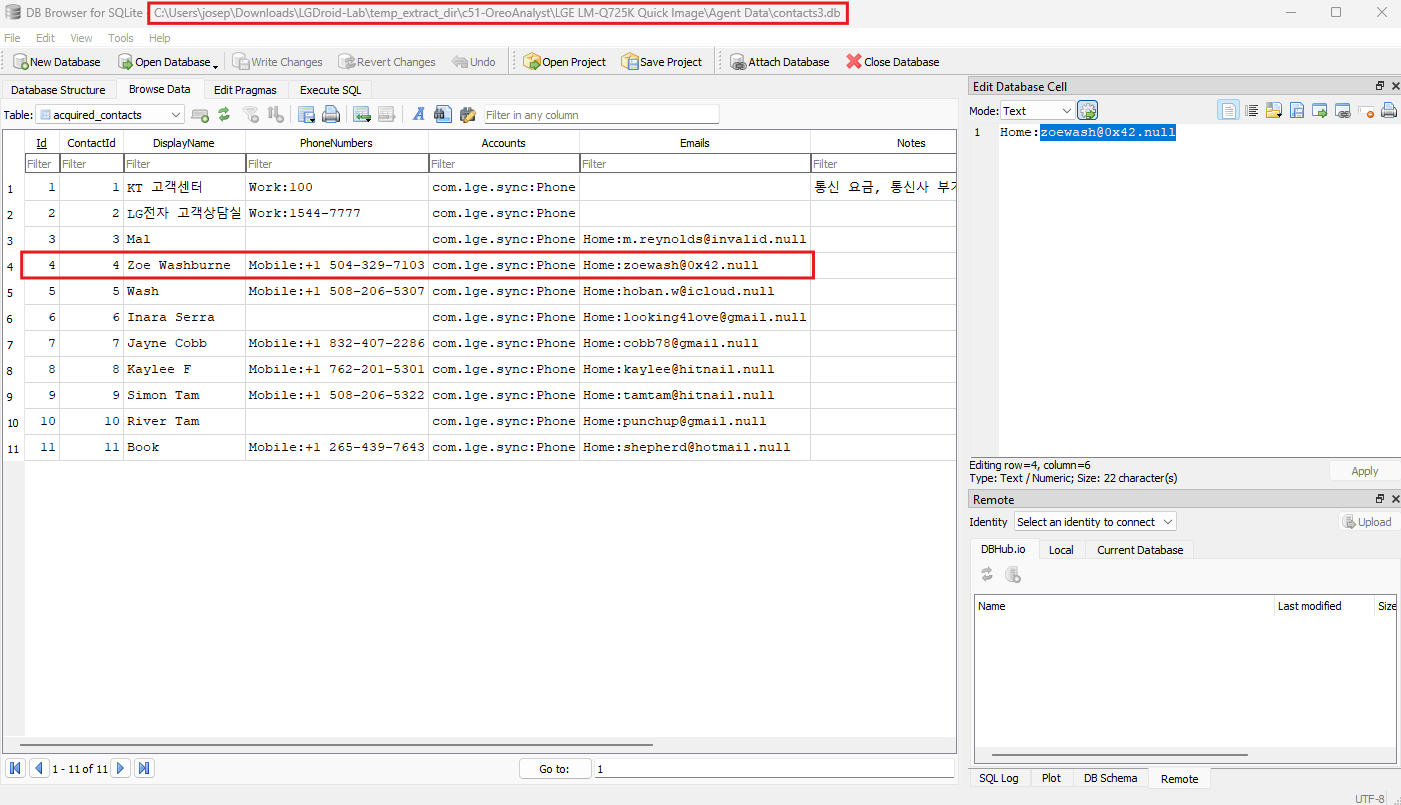
While the domain .null may seem unusual, it may signify placeholder or incomplete data commonly encountered during forensic analysis of mobile device databases. However, forensic procedures require reporting the data exactly as found.
Question 2
Question 2: What was the device time in UTC at the time of acquisition? (hh:mm:ss)
To determine the device’s time in UTC at the moment of acquisition, we begin by examining the relevant files within the provided Android dump. In the directory labeled Live Data, one of the files, named device_datetime_utc.txt, contains the specific timestamp information we need.
This file is opened using a basic text editor, and it reveals a timestamp in the format YYYY-MM-DD HH:MM:SS. Upon inspection, the content of the file shows the exact timestamp 2021-05-21 18:17:56.
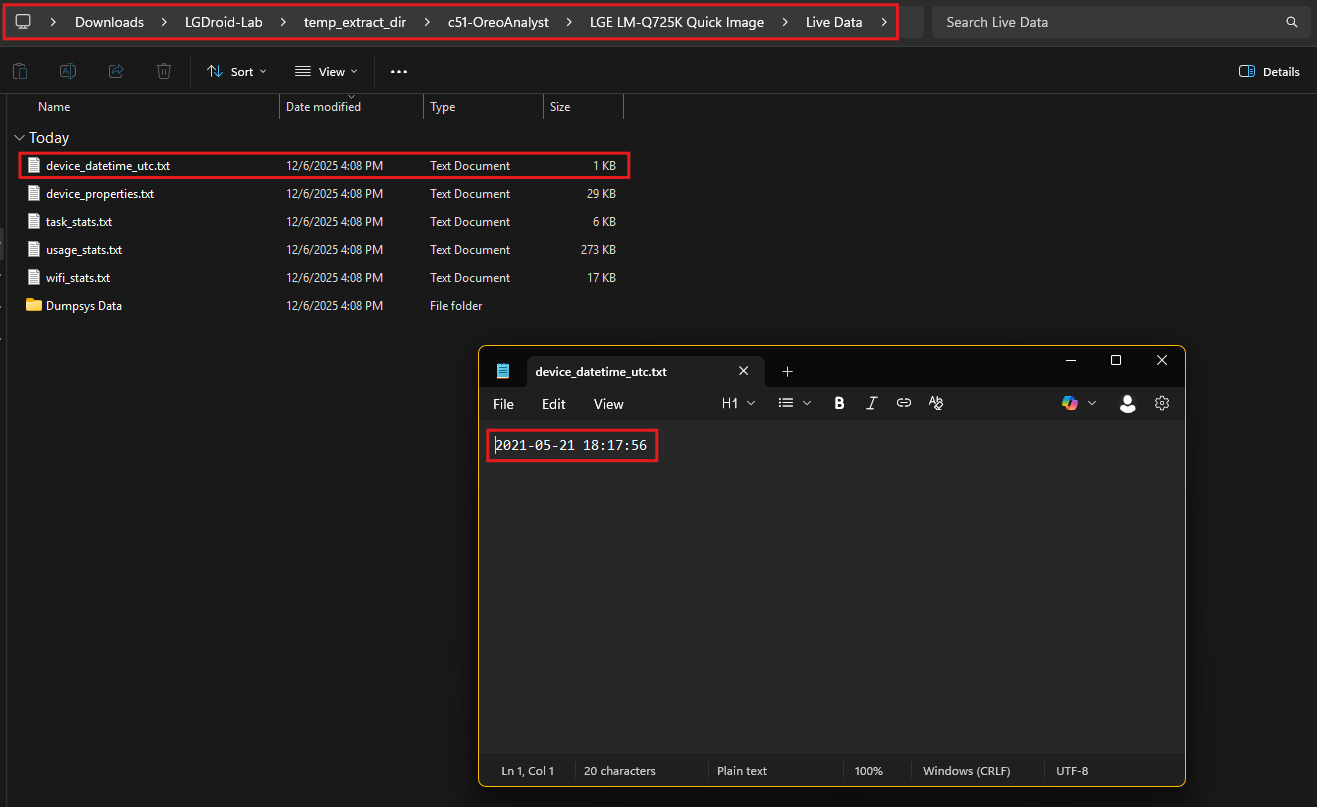
This timestamp represents the device’s recorded time in Coordinated Universal Time (UTC) at the time the data was acquired. The file’s naming convention and content make it straightforward to identify that this information is crucial for forensic timelines and verification.
The simplicity of this process emphasizes the importance of maintaining an organized directory structure when working with digital forensic artifacts. By naming files descriptively and storing critical metadata in plain-text formats, investigators can quickly retrieve and interpret necessary data without the need for complex parsing or additional tools.
The device time at the moment of acquisition, expressed in UTC, is therefore confirmed to be 18:17:56. This value plays a significant role in correlating events, logs, and actions within the broader forensic timeline, ensuring precise and reliable analysis.
Question 3
Question 3: To determine the time at which the Tor Browser was downloaded in UTC, we analyze the database file named downloads.db using a forensic tool like DB Browser for SQLite. This database contains information about files downloaded on the Android device, including metadata such as file names, download paths, timestamps, and file sizes.
The Tor Browser, visible in the data under the uri column, is listed with the full path /storage/emulated/0/Download/tor-browser-10.0.15-android-armv7-multi.apk. This entry corresponds to a downloadable Android package file (.apk) for the Tor Browser, a privacy-focused web browser designed to anonymize internet activity by routing traffic through the Tor network. The Tor network encrypts and reroutes data through multiple nodes, providing anonymity and bypassing censorship. Forensic analysis of such downloads can reveal insights into a user’s intent or behavior.
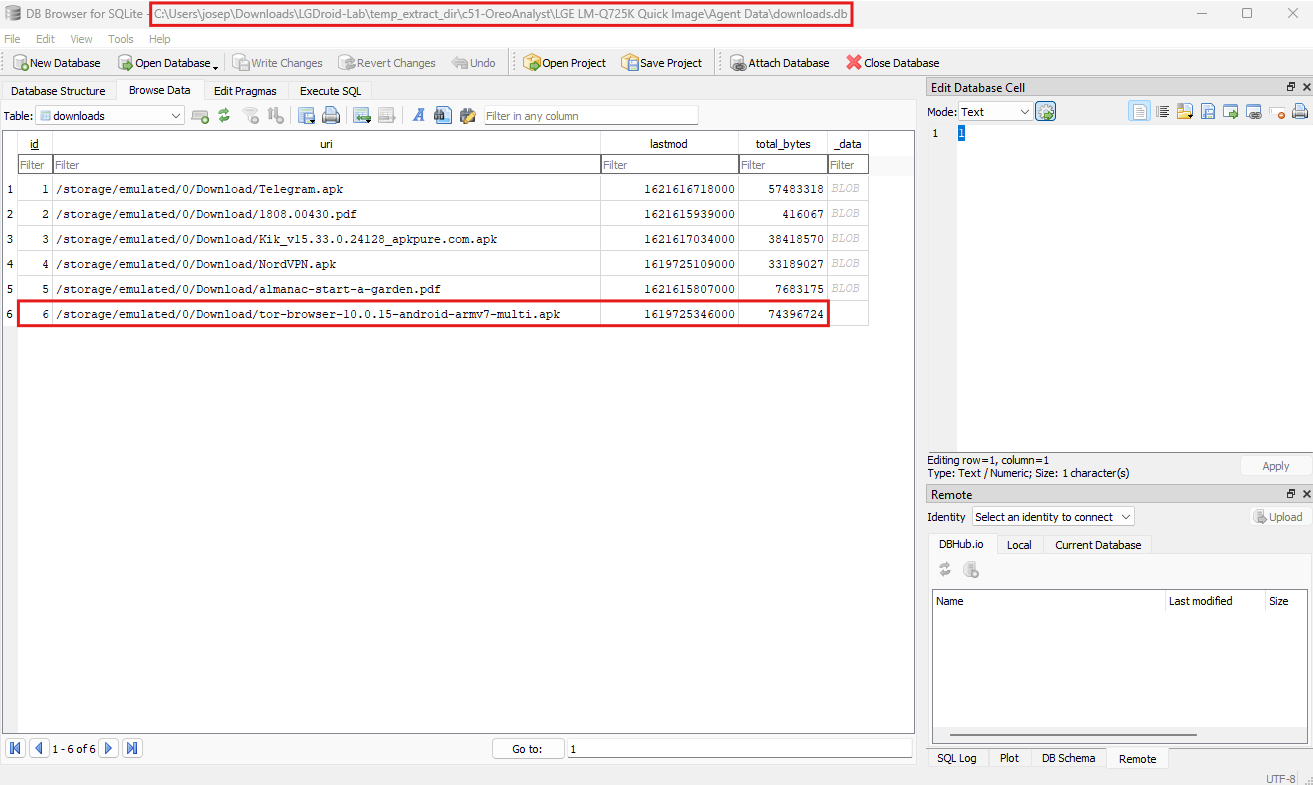
Focusing on the relevant row for the Tor Browser download, the lastmod column provides a timestamp indicating when the file was last modified, which is often synonymous with the download completion time in this context. This timestamp is stored as an epoch value (1619725346000), which represents the number of milliseconds since January 1, 1970 (UTC).
To convert this epoch timestamp into a human-readable format, we can use an online tool such as this epoch converter. Converting 1619725346000 results in the date and time 2021-04-29 19:42:26 UTC. The hour, minute, and second portion of this timestamp confirms that the Tor Browser was downloaded at 19:42:26 UTC.
This analysis demonstrates the importance of understanding database structures and encoding formats like epoch time during forensic investigations. By interpreting this information accurately, we gain a precise understanding of when specific actions occurred, aiding in reconstructing timelines and uncovering user activity.
Question 4
Question 4: What time did the phone charge to 100% after the last reset? (hh:mm:ss)
To determine the exact time when the phone charged to 100% after the last reset, we analyze the batterystats.txt file. This file logs detailed information about the battery’s behavior, including charging states, power consumption, and device events. It is an integral part of Android’s diagnostic data and can provide insight into device usage patterns and charging habits, which are crucial for timeline reconstruction in forensic investigations.
The batterystats.txt file includes a chronological log of battery events. Each entry is accompanied by an offset timestamp that represents the time elapsed since the last reset, and other parameters such as battery percentage, charging state, and charge level in milliamp-hours (mAh). To find the precise moment when the battery reached full charge, we search for the attribute status=full, as it indicates that the charging process was completed.
In the provided data, we locate the entry: +5m01s459ms (3) 100 status=full charge=2665.
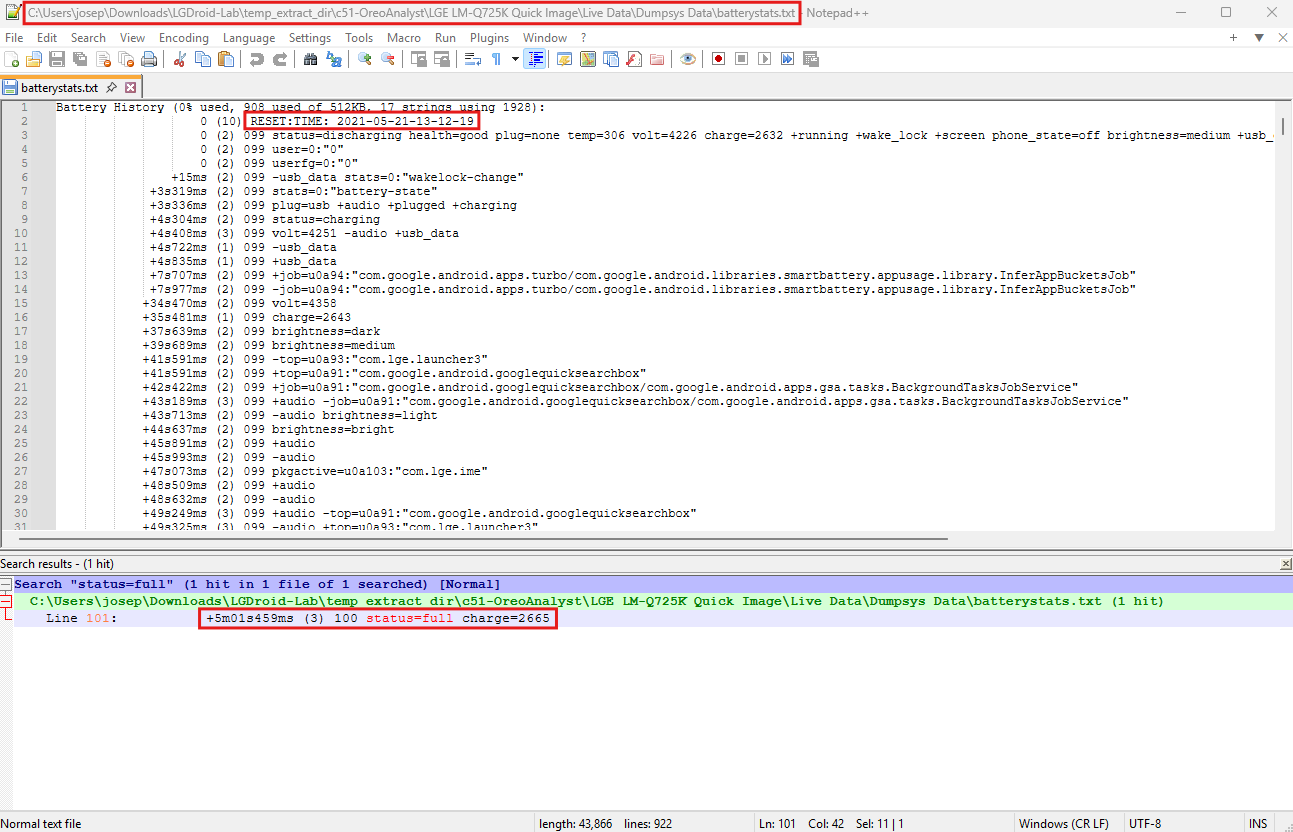
This means that 5 minutes, 1 second, and 459 milliseconds after the last reset, the battery reached 100% charge with a recorded capacity of 2665 mAh. The log clearly denotes the battery percentage (100) and confirms the status as full (status=full), which is a definitive indicator of a completed charge cycle.
To determine the exact time in UTC, we must combine the offset with the timestamp of the last reset. Earlier in the file, the reset time is recorded as 2021-05-21 13:12:19 UTC. Adding the offset of +5m01s459ms to this reset time, we perform the following calculation:
- Add 5 minutes and 1 seconds to
13:12:19, which results in13:17:20. - The milliseconds do not affect the final time in hours, minutes, and seconds but serve to indicate the precision of the event.
The calculated time indicates that the phone reached full charge at 13:17:20 UTC on 2021-05-21. This exact timestamp provides forensic investigators with a precise event to anchor other activities or correlate with related logs.
Analyzing such logs can also offer insights into device usage, patterns of charging, and potential periods of inactivity, contributing to a more comprehensive understanding of the device’s history and activities.
Question 5
Question 5: What is the password for the most recently connected WIFI access point?
To uncover the password for the most recently connected Wi-Fi access point, we then examine the file com.android.providers.settings.data located in the adb-data/apps/com.android.providers.settings directory.
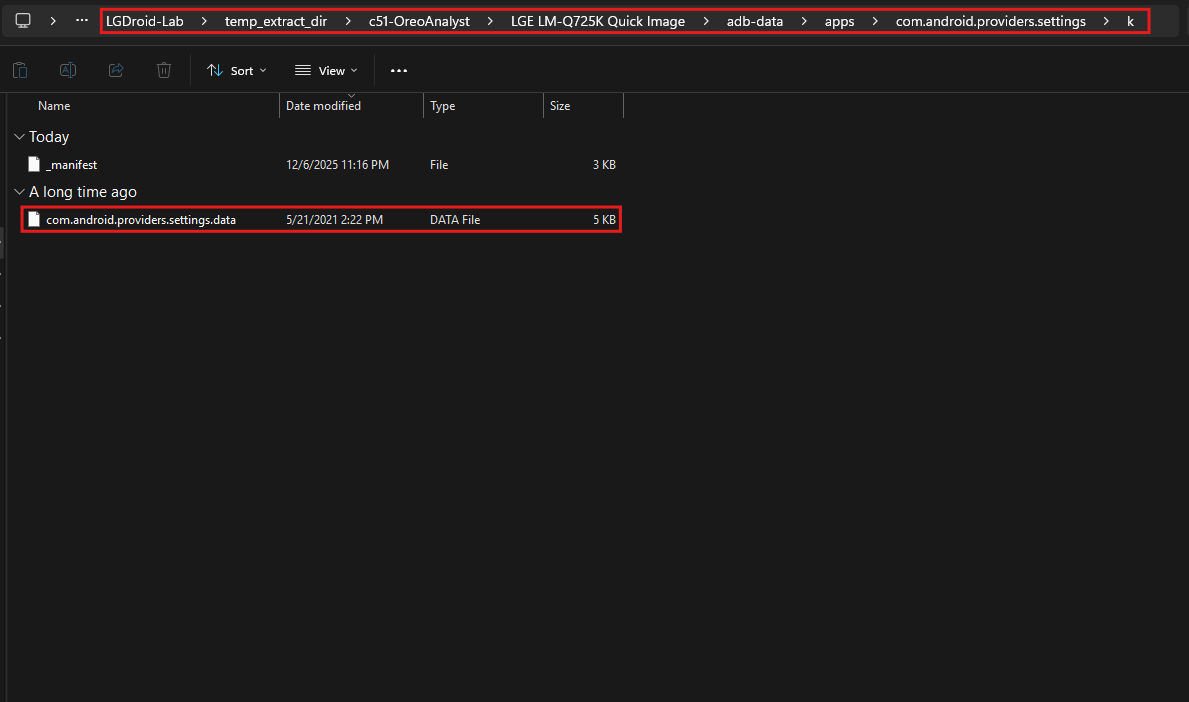
This file contains information related to the Android device’s system settings, including Wi-Fi configurations. The file is analyzed using a text editor such as Notepad++ for its structured content.
Within the file, the configuration data for Wi-Fi networks are stored in XML-like entries. These entries include the SSID (Service Set Identifier), which identifies the network name, and the PreSharedKey, which contains the password for networks secured with WPA or WPA2 protocols. Specifically, the section corresponding to Wi-Fi settings lists various attributes such as the SSID and pre-shared key for known networks.
In this case, we locate the entry for the most recently connected Wi-Fi access point. The SSID is displayed as "Hot_SSL", and the corresponding pre-shared key is "ThinkingForest!".
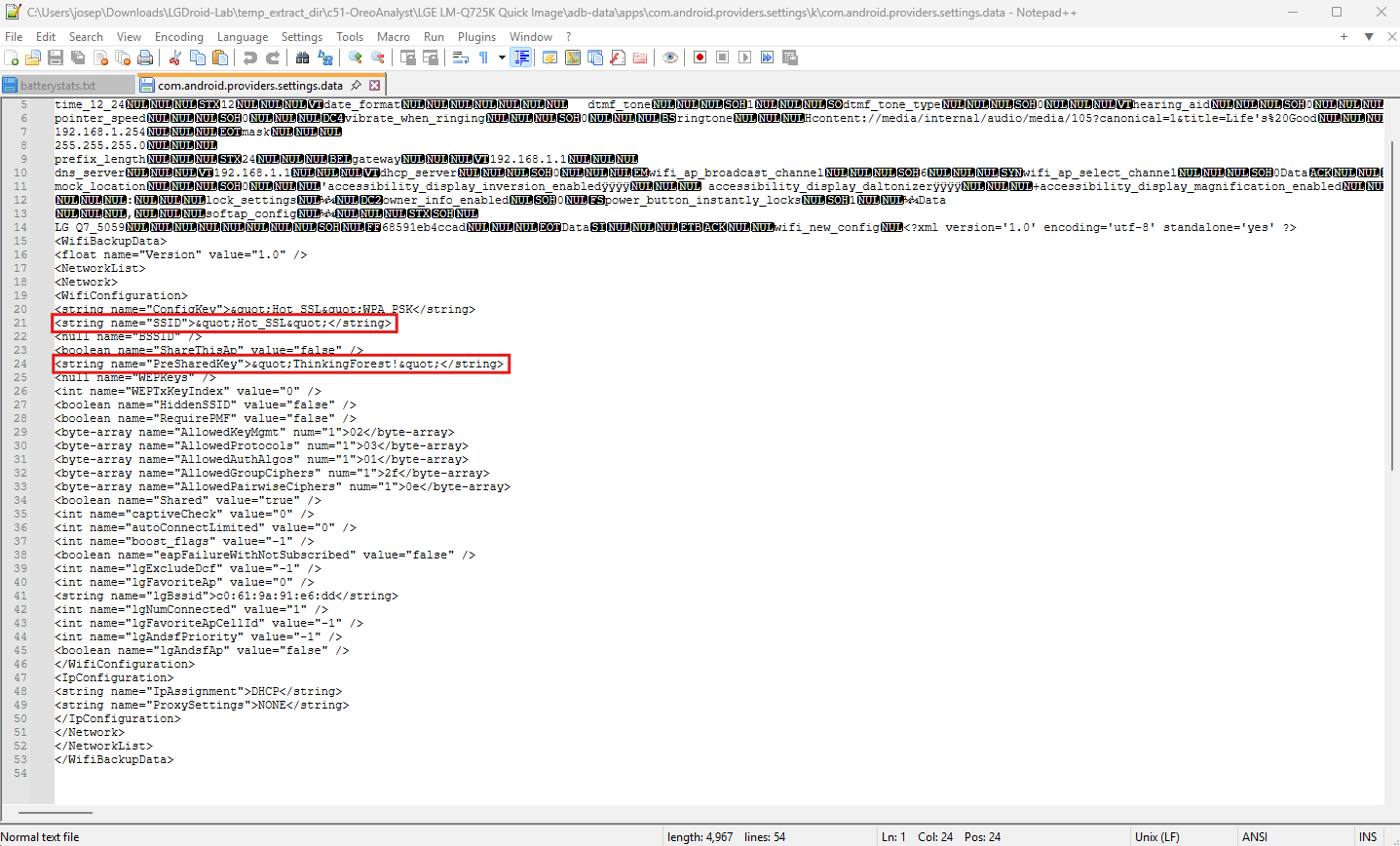
This pre-shared key represents the password required to connect to this Wi-Fi network. The clarity of this information is vital for investigators attempting to reconstruct network activity or understand the device’s network interactions.
This discovery process underscores the importance of systematically analyzing configuration files in forensic investigations. By navigating through structured data and locating relevant sections, we can retrieve sensitive information such as Wi-Fi passwords. In this scenario, the password for the most recently connected Wi-Fi access point is confirmed as "ThinkingForest!". This piece of information can be used to understand the device’s network behavior and potentially access other devices or data associated with the same network.
Question 6
Question 6: What app was the user focused on at 2021-05-20 14:13:27?
To determine which app the user was focused on at the specific timestamp 2021-05-20 14:13:27, we analyze the file usage_stats.txt. This file is part of the extracted forensic data and provides a log of app usage events on the Android device. The log contains detailed information about user interactions with applications, including when apps move to the foreground or background, changes in standby state, and other usage-related metrics.
The usage_stats.txt file records events in chronological order, with each entry containing a time field that specifies the timestamp, a type field describing the event type, and a package field identifying the application associated with the event. To determine which app was active at the specified time, we need to locate the MOVE_TO_FOREGROUND event closest to 2021-05-20 14:13:27.
Upon examining the file, we find a MOVE_TO_FOREGROUND event at the exact timestamp 2021-05-20 14:13:27. This event is associated with the application identified by the package name com.google.android.youtube.
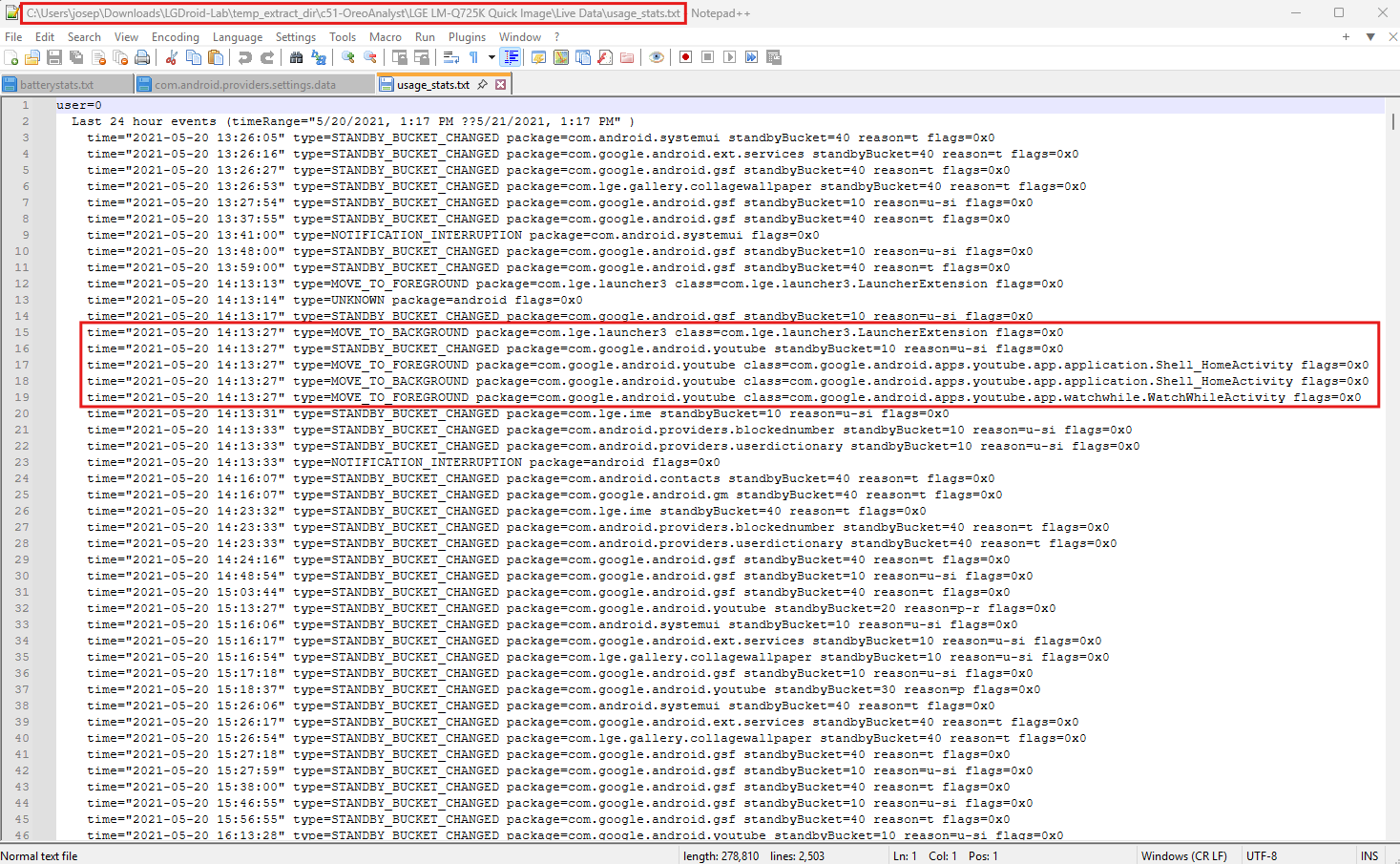
This package corresponds to the YouTube app. The event type MOVE_TO_FOREGROUND indicates that the YouTube app became the active application at that moment, signifying user focus on the app.
The MOVE_TO_FOREGROUND event is particularly relevant in identifying the app currently in use, as it reflects the user’s interaction. Based on the log entry, we conclude that the user was focused on the YouTube app at 2021-05-20 14:13:27.
Question 7
Question 7: How much time did the suspect watch Youtube on 2021-05-20? (hh:mm:ss)
To determine how much time the suspect spent watching YouTube on May 20, 2021, we analyze the usage_stats.txt file, which logs app activity, including when apps move to the foreground (active) or background (inactive). These logs are critical for calculating the duration of app usage.
The file contains a time field indicating the event’s timestamp, a type field describing the nature of the event (e.g., MOVE_TO_FOREGROUND or MOVE_TO_BACKGROUND), and a package field identifying the application. To calculate the total time spent on YouTube, we focus on events associated with the package com.google.android.youtube and identify the timestamps when the app was moved to the foreground and background.
From the data, we identify the following:
- At
2021-05-20 14:13:27, the YouTube app became active, as indicated by theMOVE_TO_FOREGROUNDevent. - At
2021-05-20 22:47:57, the app moved to the background, as indicated by theMOVE_TO_BACKGROUNDevent.
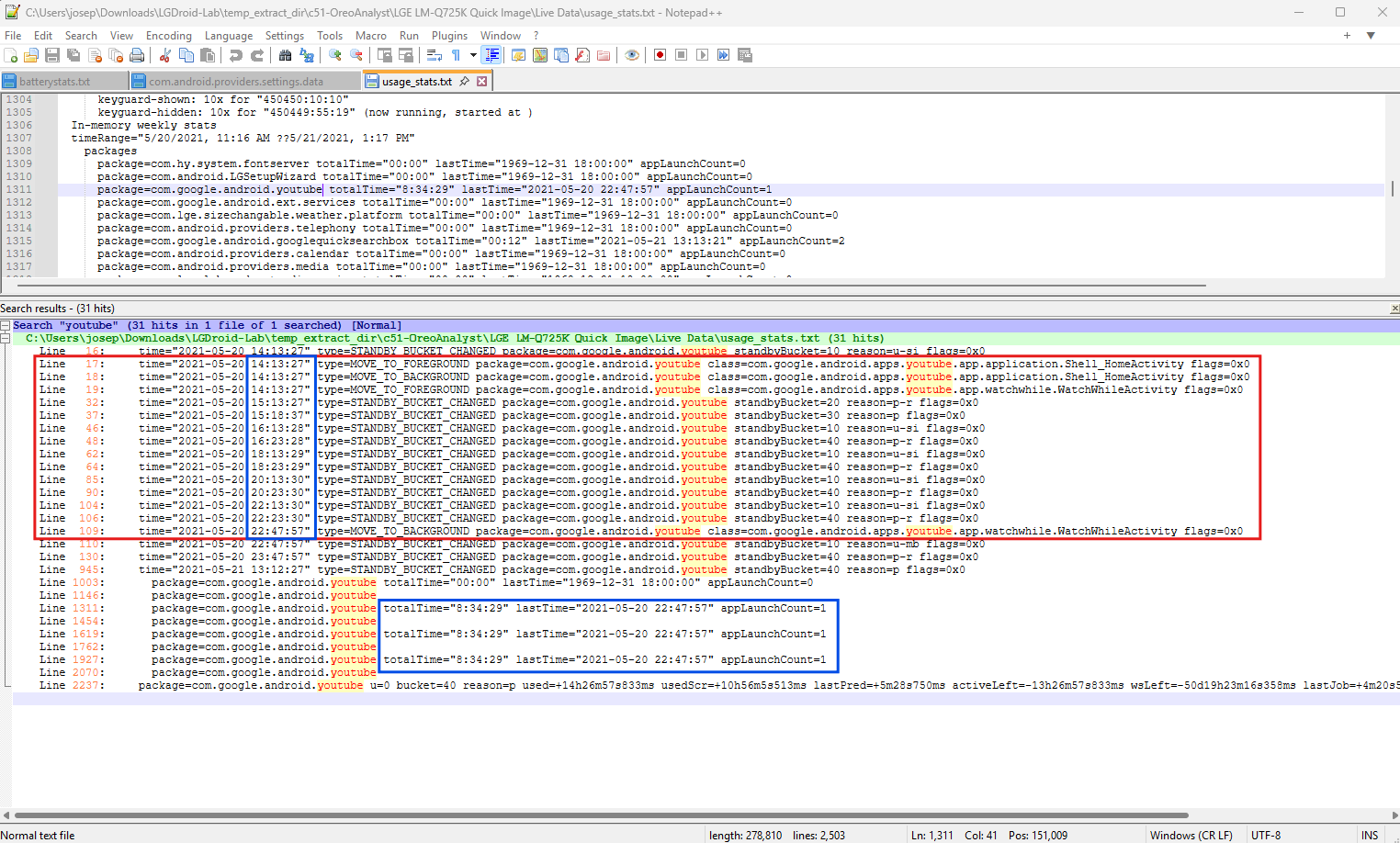
To calculate the total time spent on YouTube:
- Convert the timestamps into seconds for easier computation:
14:13:27corresponds to 14 hours, 13 minutes, and 27 seconds, or(14*3600) + (13*60) + 27 = 51207 seconds.22:47:57corresponds to 22 hours, 47 minutes, and 57 seconds, or(22*3600) + (47*60) + 57 = 82077 seconds.
- Subtract the foreground timestamp from the background timestamp:
82077 - 51107 = 30870 seconds.
- Convert the total seconds back into hours, minutes, and seconds:
30970 seconds = 8 hours, 34 minutes, and 30 seconds.
The suspect spent a total of 8 hours, 34 minutes, and 30 seconds watching YouTube on May 20, 2021.
This analysis demonstrates how forensic investigators can utilize app usage logs to precisely reconstruct user activity. The MOVE_TO_FOREGROUND and MOVE_TO_BACKGROUND events provide the exact start and end points of app usage, enabling accurate time calculations. Such insights are invaluable for building a detailed timeline of user behavior.
Question 8
Question 8: What is the structural similarity metric for the image “suspicious.jpg” compared to a visually similar image taken with a mobile phone?
To determine the structural similarity metric (SSIM) between suspicious.jpg and a visually similar image captured on the mobile phone (20210429_151535.jpg), we can use a Python script.
1
2
3
4
5
6
7
8
9
10
11
12
13
14
15
16
import cv2 as cv
from skimage.metrics import structural_similarity as ssim

# Calculate SSIM
first = cv.imread("real-screen-image.png")

#second = cv.imread("captured.png")
second = cv.imread("unfiltered.png")

first = cv.resize(first, (2576,1125))
second = cv.resize(second, (2576,1125))
first = cv.cvtColor(first, cv.COLOR_BGR2GRAY)
second = cv.cvtColor(second, cv.COLOR_BGR2GRAY)
s = ssim(first, second)

print(s)
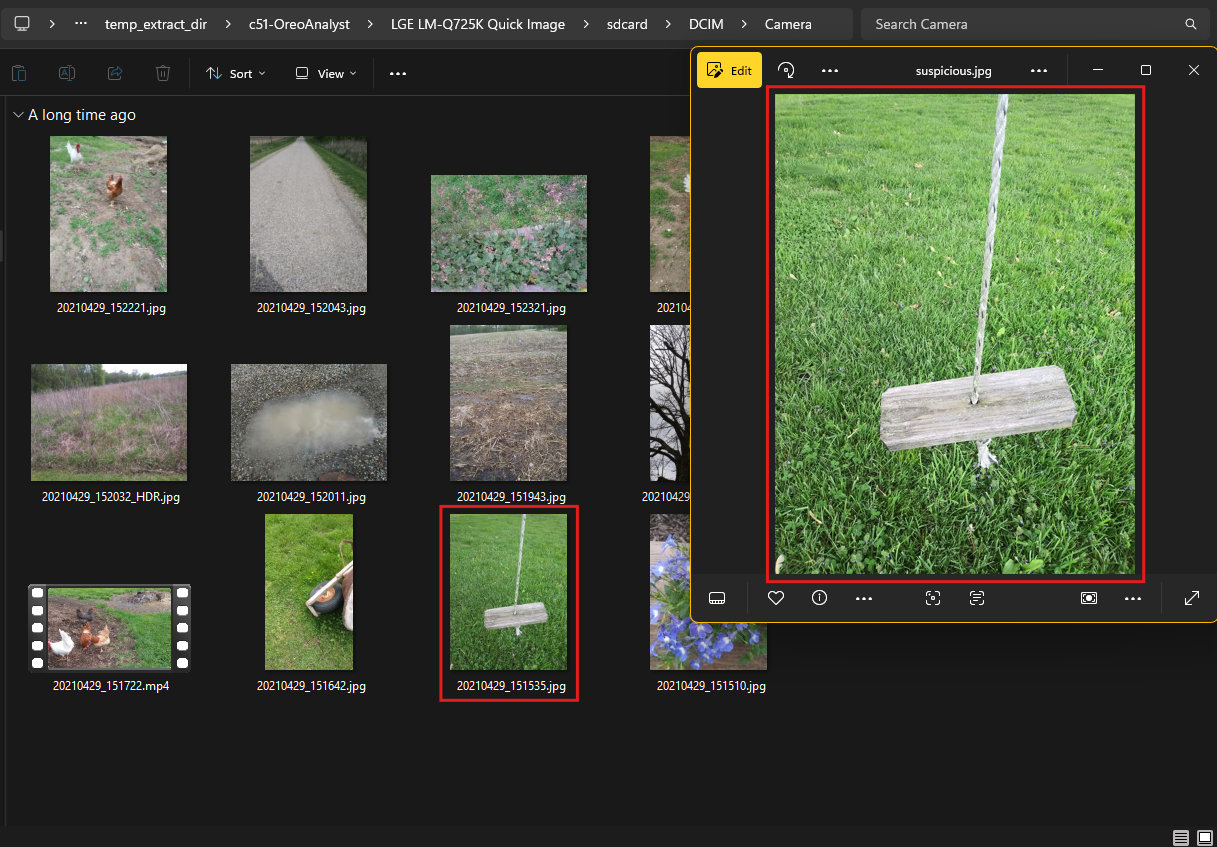
SSIM, or Structural Similarity Index, is a method for comparing two images to determine their visual and structural likeness. Unlike pixel-by-pixel comparisons, SSIM evaluates luminance, contrast, and structural similarity, producing a score between 0 and 1. A score of 1 indicates identical images, while lower scores represent increasing levels of dissimilarity. This makes SSIM particularly useful in forensic analysis for assessing whether two images are essentially the same.
The Python script used for this task employs the cv2 library for image processing and the skimage.metrics library for calculating SSIM. The script takes two images as input: one is the suspect image (suspicious.jpg), and the other is a reference image taken from the mobile phone (20210429_151535.jpg). Both images are loaded into the script, resized to standard dimensions to ensure consistency, and converted to grayscale to simplify the comparison process. Grayscale conversion is an important preprocessing step because it reduces the complexity of the calculation by focusing only on the intensity values of the images.
To execute the analysis, the script is run from the command line using the command python ssim-calc.py. Once the script processes the images, it outputs the SSIM score in the terminal. In this case, the calculated SSIM score is 0.997812534804189.
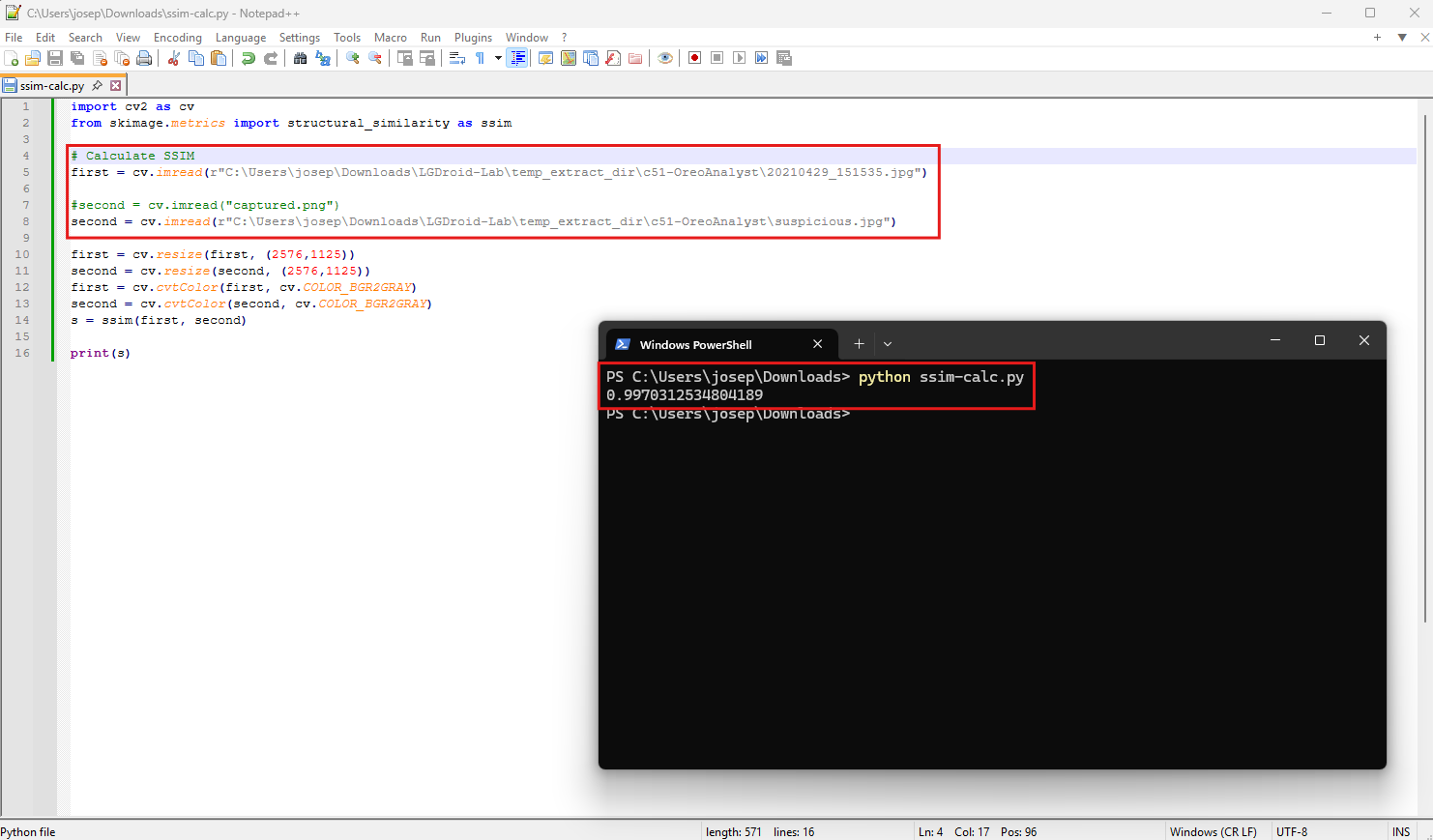
This value is very close to 1, indicating that the two images are nearly identical in their structure and visual appearance. Such a high SSIM score suggests that the images share almost the same content, with minimal differences that are imperceptible to the human eye.
This high level of similarity, as revealed by the SSIM score, can have significant implications in forensic investigations. It confirms that suspicious.jpg is virtually identical to the reference image, likely indicating that the two images were either taken in the same context or represent the same object. This finding can be used to corroborate evidence, validate the source of an image, or detect potential tampering.
The use of SSIM in this scenario demonstrates its power as a forensic tool for automated image comparison. By leveraging Python scripts and libraries, forensic investigators can efficiently and accurately evaluate the similarity of images, even in cases where minor changes or compression might exist. The calculated SSIM value of 0.997812534804189 confirms the strong structural and visual resemblance between suspicious.jpg and the reference image, making it a critical finding in this analysis.
Conclusion
This lab was fun. The lab was a solid dive into mobile forensics with an Android device. I enjoyed finding different apps used, battery usage, and downloads on the device, in order to establish a solid timeline of events. I love gathering IOCs from devices in order to find the root cause of an incident or a crime. These labs are so helpful for my learning and knowledge on blue team practices.